Setup PostHog on AWS Spot Instances: Complete Guide
20 Jan 2026, 12:21 pm
Last Updated: 20 Jan 2026, 12:21 pm
Author: Satheesh Challa
Introduction: Why PostHog on Spot Instances?
What is PostHog?
PostHog is an open-source product analytics platform that helps teams understand user behavior, track events, analyze funnels, and make data-driven decisions. Unlike traditional analytics tools, PostHog can be self-hosted, giving you complete control over your data and eliminating expensive per-event pricing. With features like session recording, feature flags, and A/B testing built-in, PostHog provides a comprehensive analytics suite that rivals platforms costing thousands per month. Self-hosting PostHog on AWS infrastructure gives you enterprise-grade analytics at a fraction of the cost.
Benefits of Running PostHog on Spot Instances
Running PostHog on AWS Spot Instances can reduce your infrastructure costs by up to 90% compared to On-Demand pricing. Since PostHog is stateless at the application layer (data persists in PostgreSQL and ClickHouse), it's perfectly suited for Spot Instances. The analytics workload can tolerate brief interruptions when properly configured with persistent storage and graceful shutdown handling.
For a typical PostHog deployment handling 100K events per day, you could reduce monthly costs from $500+ on On-Demand instances to under $50 with Spot Instances. The key is implementing proper data persistence, automated backups, and using Spot Fleet with diversified instance types to minimize interruptions. This guide will show you exactly how to architect a production-ready PostHog deployment that maximizes cost savings while maintaining reliability.
Prerequisites and Requirements
AWS Account Setup
Before deploying PostHog, ensure your AWS account has the necessary permissions and limits. You'll need IAM permissions to create EC2 instances, Spot Fleet requests, EBS volumes, security groups, and access to CloudWatch for monitoring. Verify your Spot Instance limits allow launching the instance types you plan to use. Most accounts start with sufficient limits, but high-volume deployments may require limit increases through AWS Support.
Required Tools and Dependencies
You'll need the AWS CLI configured with appropriate credentials, Docker and Docker Compose for container deployment, and basic knowledge of Linux system administration. Install these tools locally for deployment management. Additionally, having a domain name and DNS access is recommended for setting up SSL/TLS certificates with Let's Encrypt.
Recommended Instance Types for PostHog
PostHog's resource requirements depend on your event volume. For low-traffic deployments (under 10K events/day), a t3.large (2 vCPU, 8GB RAM) is sufficient. Medium traffic (10K-50K events/day) needs t3.xlarge or m5.large (4 vCPU, 16GB RAM). High-volume production deployments (over 200K events/day) benefit from m5.2xlarge (8 vCPU, 32GB RAM). Configure your Spot Fleet to include multiple instance families for maximum availability.
| Instance Type | vCPU | Memory | Recommended Use |
|---|---|---|---|
| t3.xlarge | 4 | 16GB | Medium deployments (10K-50K events/day) |
| m5.xlarge | 4 | 16GB | Production workloads (50K-200K events/day) |
| m5.2xlarge | 8 | 32GB | High-volume deployments (>200K events/day) |
For the most up-to-date and detailed prerequisites, please refer to the official PostHog documentation.
Setting Up AWS Infrastructure
Creating a Spot Fleet Request
Navigate to the EC2 console and create a Spot Fleet request with "Request and Maintain" to ensure automatic replacement of interrupted instances. Select 8-12 instance types across t3, m5, m5a, and m5n families to maximize availability. Set target capacity to 1 instance, use capacity-optimized allocation strategy, and enable "Maintain target capacity" so AWS automatically replaces terminated instances.
Configure your launch template with an Ubuntu 22.04 LTS AMI, appropriate key pair for SSH access, and a user data script that installs Docker on boot. Set the maximum price to the On-Demand price to ensure you always get capacity when available. Select all availability zones in your region for maximum diversification. This configuration minimizes interruptions while maximizing cost savings.
User Data Script Example
#!/bin/bash
apt-get update
apt-get install -y docker.io docker-compose
systemctl enable docker
systemctl start docker
usermod -aG docker ubuntu
Configuring Security Groups and Networking
Create a security group that allows inbound traffic on port 80 (HTTP), 443 (HTTPS), and 22 (SSH) from your IP address. PostHog runs on port 8000 by default, but you'll proxy it through nginx. Allow outbound traffic to all destinations so PostHog can fetch updates and connect to external services.
For production deployments, use a VPC with private subnets for the database layer and public subnets for the application layer. Configure NAT gateways to allow private instances to access the internet for updates. This network architecture provides better security while maintaining functionality.
Setting Up Persistent Storage with EBS
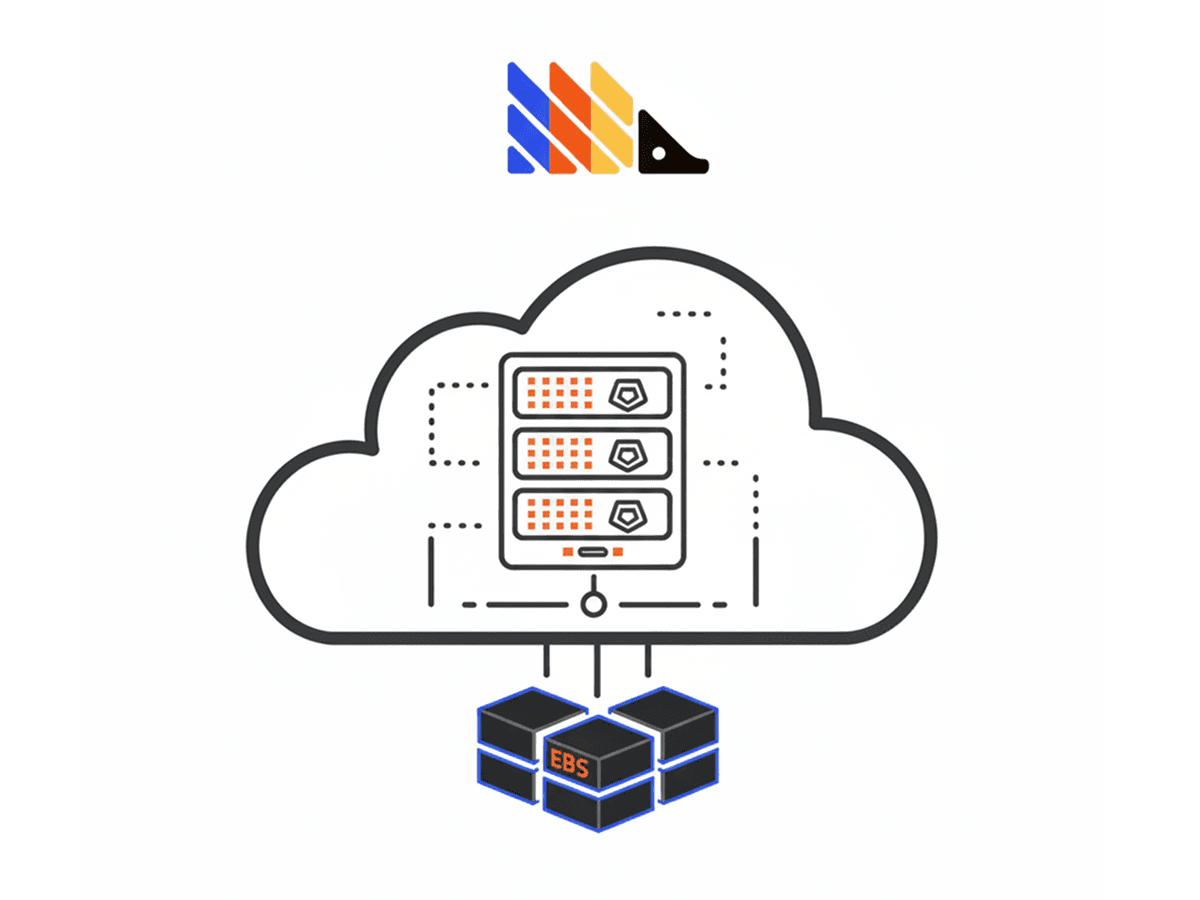
Create an EBS volume (minimum 100GB, gp3 type recommended) in the same availability zone as your Spot Instance. This volume will store PostgreSQL and ClickHouse data, ensuring your analytics data persists across Spot Instance interruptions. Mount this volume at `/mnt/posthog-data` and configure your Docker volumes to use subdirectories.
Configure your user data script to automatically attach and mount the EBS volume on instance launch. Use the volume's ID in your script and implement proper mounting with fstab entries. Enable automated snapshots through AWS Backup or Data Lifecycle Manager to create daily backups. This ensures you can recover your data even if both the instance and volume are lost.
💡 Storage Best Practice
Always use a separate EBS volume for data storage, never store data on the instance root volume. This allows your PostHog data to survive Spot Instance terminations.
Installing PostHog Using Docker
Docker and Docker Compose Installation
SSH into your Spot Instance and verify Docker is installed and running with `docker --version` and `docker ps`. Install Docker Compose if not already present using `sudo apt-get install docker-compose-plugin`. Ensure your ubuntu user is in the docker group to run commands without sudo.
Create a working directory at `/mnt/posthog-data/posthog` where you'll store your Docker Compose configuration and persistent data. This directory should be on your mounted EBS volume to ensure data persistence across instance terminations.
Deploying PostHog Container
Download the official PostHog Docker Compose file from their GitHub repository. This file includes PostHog, PostgreSQL, Redis, and ClickHouse containers properly configured to work together. Customize the compose file to point volume mounts to your persistent EBS mount point.
Launch PostHog with `docker compose up -d` to start all containers in detached mode. Monitor the logs with `docker compose logs -f` to ensure all services start correctly. The first launch takes 2-3 minutes as PostHog initializes databases and runs migrations. Once complete, PostHog will be accessible on port 8000.
Docker Compose Configuration
version: '3'
services:
  posthog:
    image: posthog/posthog:latest
    ports:
      - "8000:8000"
    environment:
      DATABASE_URL: postgres://posthog:posthog@db:5432/posthog
      REDIS_URL: redis://redis:6379
      CLICKHOUSE_HOST: clickhouse
    volumes:
      - /mnt/posthog-data/media:/code/media
    depends_on:
      - db
      - redis
      - clickhouse

  db:
    image: postgres:14
    volumes:
      - /mnt/posthog-data/postgres:/var/lib/postgresql/data
    environment:
      POSTGRES_USER: posthog
      POSTGRES_PASSWORD: posthog
      POSTGRES_DB: posthog

  redis:
    image: redis:7
    volumes:
      - /mnt/posthog-data/redis:/data

  clickhouse:
    image: clickhouse/clickhouse-server:23
    volumes:
      - /mnt/posthog-data/clickhouse:/var/lib/clickhouse
Configuring PostgreSQL and ClickHouse
PostgreSQL stores PostHog's application data (users, dashboards, feature flags) while ClickHouse handles analytics events for high-performance queries. Both databases are configured automatically by the Docker Compose file, but you should tune them for production use.
For PostgreSQL, increase shared_buffers and effective_cache_size based on your instance memory. For ClickHouse, configure max_memory_usage to use about 80% of available RAM minus what PostgreSQL needs. These optimizations ensure efficient query performance as your event volume grows. Monitor database disk usage and configure log rotation to prevent storage issues.
Handling Spot Instance Interruptions
Implementing Graceful Shutdown Scripts
Create a systemd service that monitors the EC2 metadata endpoint for Spot termination notices. When a termination notice is detected, the script should gracefully stop Docker containers, ensuring databases flush their write buffers and close connections properly. This prevents data corruption during forced shutdowns.
Your shutdown script should run `docker compose down` to stop containers gracefully, unmount the EBS volume cleanly, and log the event to CloudWatch. The entire process must complete within the two-minute warning window. Test your shutdown procedure by manually triggering it to verify data integrity.
Spot Termination Handler Script
#!/bin/bash
# /usr/local/bin/spot-termination-handler.sh

while true; do
  TOKEN=$(curl -X PUT "http://169.254.169.254/latest/api/token" \
    -H "X-aws-ec2-metadata-token-ttl-seconds: 21600" 2>/dev/null)

  TERMINATION=$(curl -H "X-aws-ec2-metadata-token: $TOKEN" \
    http://169.254.169.254/latest/meta-data/spot/instance-action 2>/dev/null)

  if [ ! -z "$TERMINATION" ]; then
    echo "Spot termination detected. Shutting down gracefully..."
    cd /mnt/posthog-data/posthog
    docker compose down --timeout 60
    umount /mnt/posthog-data
    exit 0
  fi

  sleep 5
done
Data Persistence Strategy
Your PostHog data persistence strategy relies on three layers: EBS volumes for primary storage, automated EBS snapshots for point-in-time recovery, and optional S3 backups for long-term retention. Configure daily automated snapshots through AWS Backup or Data Lifecycle Manager policies.
Test your recovery procedure by launching a new Spot Instance and attaching a snapshot-restored volume. Verify PostHog starts correctly with all historical data intact. Document your recovery process and keep snapshots for at least 30 days to handle any data corruption scenarios.
Automatic Instance Replacement
Configure your Spot Fleet to automatically launch replacement instances when one is terminated. The new instance should automatically attach your persistent EBS volume and restart PostHog containers through user data scripts. This automation ensures minimal downtime—typically under 2 minutes.
Implement a startup script that checks for the PostHog data volume, mounts it if present, and launches Docker Compose automatically. Add health checks to verify PostHog is responding before marking the instance as healthy. Configure CloudWatch alarms to notify you of instance replacements so you can monitor interruption frequency.
Configuration and Optimization
PostHog Environment Variables
Configure essential PostHog environment variables in your Docker Compose file. Set `SECRET_KEY` to a random string for security, `SITE_URL` to your domain name, and `ALLOWED_HOSTS` to include your domain. Configure email settings if you want password reset and notification features.
For production use, set `IS_BEHIND_PROXY=True` if using nginx, configure `DISABLE_SECURE_SSL_REDIRECT` based on your SSL termination point, and set appropriate `KAFKA_` variables if scaling to high event volumes. Document all configuration changes in your deployment repository for reproducibility.
Setting Up SSL/TLS with Let's Encrypt
Install certbot and obtain a free SSL certificate from Let's Encrypt for your PostHog domain. Configure nginx as a reverse proxy in front of PostHog to handle SSL termination. This provides encrypted connections and proper HTTPS URLs for your analytics dashboard.
Set up automatic certificate renewal with a cron job running `certbot renew`. Configure nginx to redirect HTTP to HTTPS and set appropriate security headers. Test your SSL configuration with SSL Labs to ensure it meets security best practices. Proper SSL setup is essential for collecting events from web applications.
Performance Tuning for Cost Efficiency
Optimize PostHog's performance to run efficiently on smaller (cheaper) instances. Configure data retention policies to automatically delete old events, reducing storage costs and query times. Set session replay retention to 30-60 days unless you need longer periods for compliance.
Enable ClickHouse's data compression and configure appropriate TTL policies for different event types. Monitor query performance and add indexes for commonly filtered properties. These optimizations can reduce your instance size requirements by 30-50%, multiplying your Spot Instance savings. Regularly review your performance metrics and right-size your infrastructure.
Monitoring and Maintenance
CloudWatch Metrics and Alarms
Configure CloudWatch to monitor your Spot Instance's CPU utilization, disk space, memory usage, and network throughput. Set up alarms for disk usage above 80%, CPU sustained above 90%, and instance interruption events. These metrics help you right-size your instance and detect issues before they impact users.
Use CloudWatch Logs to collect PostHog container logs, nginx access logs, and your spot termination handler logs. Create metric filters to track error rates and event ingestion volume. Configure SNS notifications to alert your team when critical thresholds are exceeded. Proper monitoring ensures you catch and resolve issues quickly.
Backup and Recovery Procedures
Implement a comprehensive backup strategy with automated daily EBS snapshots, weekly full database exports to S3, and tested recovery procedures. Document your recovery time objective (RTO) and recovery point objective (RPO) to set appropriate backup frequencies.
Test your recovery procedure quarterly by restoring a backup to a separate environment and verifying data integrity. Keep at least 30 days of snapshots and 90 days of S3 backups. Configure lifecycle policies to automatically delete old backups and control storage costs. A well-tested backup strategy protects against data loss from any source, not just Spot Instance interruptions.
✅ Deployment Checklist
Infrastructure
- ✓ Spot Fleet with 10+ instance types
- ✓ Persistent EBS volume attached
- ✓ Security groups configured
- ✓ Automated snapshots enabled
Application
- ✓ Docker Compose deployed
- ✓ SSL certificate configured
- ✓ Graceful shutdown handler
- ✓ CloudWatch monitoring active
Conclusion: Production-Ready PostHog at 90% Lower Cost
Deploying PostHog on AWS Spot Instances provides enterprise-grade product analytics at a fraction of traditional costs. By implementing proper data persistence, graceful shutdown handling, and automated backups, you can achieve 90% cost savings while maintaining production reliability. The architecture described in this guide handles interruptions gracefully with minimal downtime.
Start with a development deployment to familiarize yourself with the process, then scale to production as you gain confidence. Monitor your interruption rates and costs closely in the first month to optimize your instance type diversification. With this setup, you can run PostHog for $50-100/month instead of thousands per month with SaaS alternatives—without compromising on features or reliability.
Want to deploy really quick and test PostHog on spot instances?
You can use the following templates to get started quickly:
Production Readiness
Before deploying PostHog in production, ensure your setup meets essential security, high availability, and monitoring requirements.
Key actions:
- Harden security groups and restrict SSH access
- Enable automated backups and disaster recovery
- Implement multi-AZ deployments for high availability
- Monitor infrastructure and application health with CloudWatch
- Regularly update and patch your OS and containers
Need Help with Site Reliability Engineering?
At BusyBrains, we specialize in deploying cost-optimized, production-ready workloads on AWS. Our cloud architects can help you design, deploy, and maintain reliable infrastructure that maximizes savings while ensuring reliability.
Similar Blogs

What is an AI Agent and How to Build One
Understand AI agent architecture, learn how autonomous systems make decisions, and follow practical steps to build intelligent agents using LLM frameworks.
Top 5 Frameworks for Building AI agents
Review the top 5 AI agent frameworks: LangChain, CrewAI, AutoGPT, Semantic Kernel, and LlamaIndex. Compare features, strengths, and ideal use cases.

Cost Optimization Strategies for AWS
Cut AWS cloud costs with proven optimization strategies: EC2 right-sizing, Reserved & Spot Instances, S3 storage management, auto-scaling, and Savings Plans.